Themes & appearance
The web console is dark by default. Twelve accent palettes and one light option are selectable from Settings or the command palette, and the choice is saved to the account.
Theme selection is a web-console setting, stored on the signed-in account. It involves no environment variable and no service restart.
Available themes#
The console is dark by default. Thirteen themes are available: twelve dark accent palettes — carbon, teal, forest, amber, copper, crimson, rose, indigo, violet, cyan, gold and steel — plus Daylight, the single light option. The default is the teal palette, shown in the picker as Slate Teal.
A dark palette changes the accent colour and nothing else. Surfaces, text and borders are identical across all twelve; what a palette selects is the colour of the live-data channel described below.
Change the theme#
The picker is at Settings → General → Appearance. Opening Settings from the sidebar lands on General — the sub-page the settings rail labels Personal. Each theme is a card carrying its display name, its accent value, and a preview of the accent applied to a progress bar and a sparkline; the current theme is marked ACTIVE.
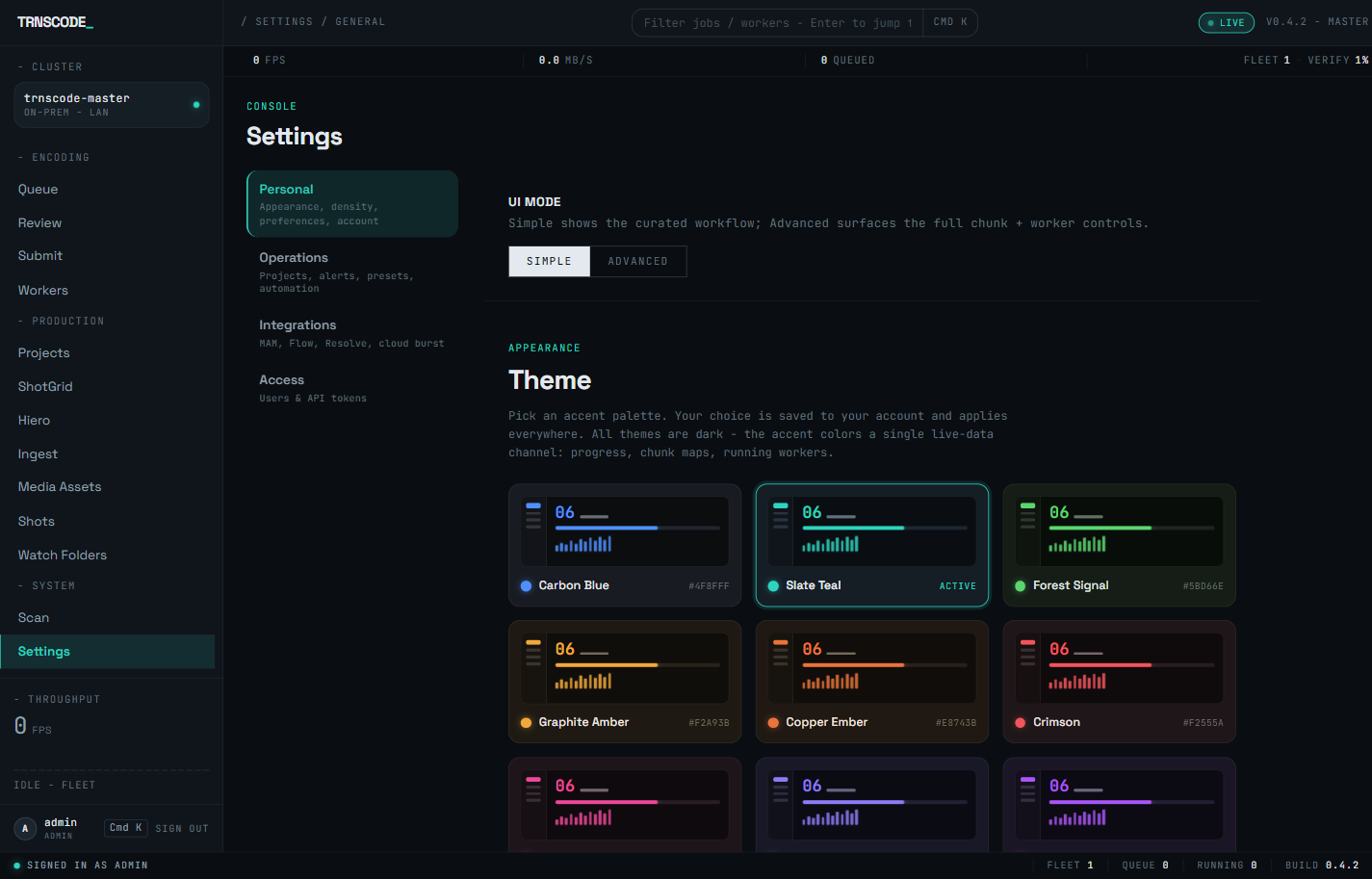
- Open Settings in the sidebar. The General sub-page loads.
- Under Appearance, select a palette card. The card is marked ACTIVE and the console adopts the accent.
The selection is saved to the account and applies everywhere the account signs in.
Switch from the command palette#
The theme can be changed without opening Settings. Press ⌘K (or Ctrl-K) anywhere in the console — the shortcut is shown beside the filter field in the top bar — and run the Switch theme action. The choice is saved to the account, the same as a change made in Settings.
Accent colour and live data#
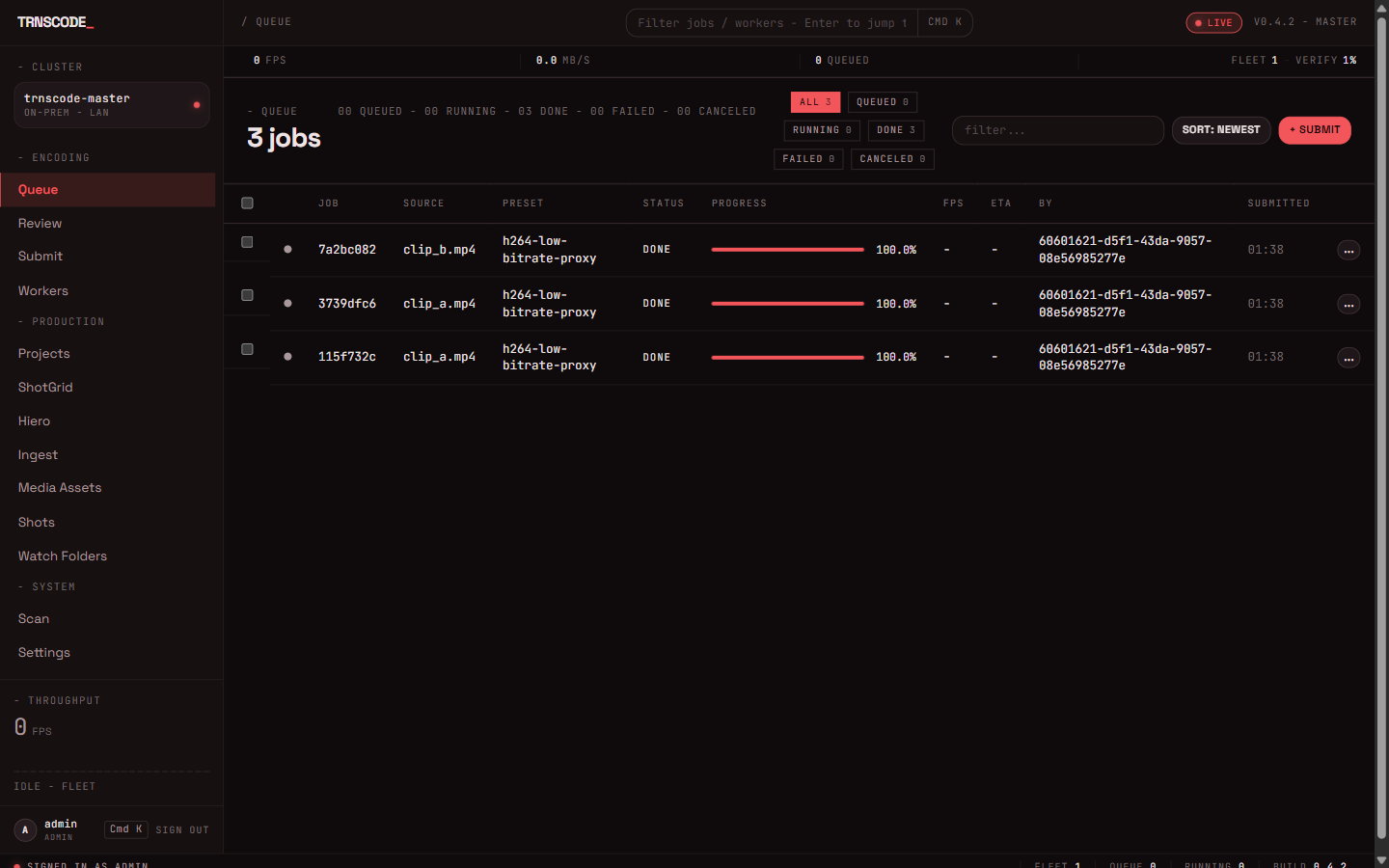
The accent is a single channel reserved for live data. Changing the palette recolours job progress bars, the chunk map, status chips, the active navigation entry, the LIVE pill in the top bar, and primary actions such as Submit. The dark surfaces and text do not change.
Persistence#
The theme is stored on the account, not in the browser. It follows the account to every browser and device that signs in, and each user of a master keeps an independent selection — changing your theme changes nothing for anyone else.