Choosing a preset
A preset is a tested recipe for one delivery target. About two hundred ship with the product, organised into use-case families.
A preset states the delivery target for a job. Preset selection determines the codec, the container, the colour handling and the settings that make the output acceptable to its recipient, and it carries more consequence than any other decision in the submit flow.
Preset structure#
Each preset carries a complete FFmpeg argument list, an output container, and a set of expectations about its input. A preset is a complete recipe rather than a starting point; its settings are anchored to an external specification rather than invented.
Every preset records the document its settings derive from. The YouTube presets follow YouTube's published recommendations, the ProRes presets follow Apple's profile numbers, and the broadcast presets follow the published broadcast delivery specifications. Cite that reference when a delivery must be justified to a recipient.
Presets are loaded into the master service's database on startup. No installation or download is required; the library is present the first time the web console is opened.
Preset library#
About two hundred presets ship with the product, organised into use-case families. The family names the situation the preset serves; within a family, individual presets differ by codec, resolution, container and bitrate.
| Family | Purpose |
|---|---|
| Broadcast | Broadcast delivery masters, built to published broadcast specifications. |
| Editorial | Intermediates for editing and grading, and editing proxies matched to a specific NLE — ProRes, DNxHD and DNxHR. |
| Streaming | Web and OTT streaming delivery. |
| Social | Platform delivery — YouTube, Vimeo, Instagram, TikTok. Sized and capped to each platform's requirements. |
| Image and animation | Still-image and image-sequence outputs, and animated image formats. |
| Device | Playback on specific devices. |
| Archival | Lossless preservation encodes, including FFV1. |
| Audio | Audio-only delivery, stereo and multichannel, at graded bitrates. |
| Camera | Ingest tuned to specific camera originals rather than to a generic input. |
| VFX | OpenEXR sequences, Rec.709 JPG dailies from EXR, and reference encodes for review. |
| GPU-accelerated | Hardware-encoder presets that use the assigned worker's GPU. See the section below. |
The preset gallery#
The Preset step of the submit flow presents the library as a searchable, filterable gallery. A category rail on the left narrows the view to one family; facet chips filter by CODEC, RESOLUTION, CONTAINER and HDR; and a free-text search field matches against preset names and descriptions. Filters combine, so a facet selection applies within the selected category. Each card states the preset's purpose and carries its codec, bitrate and container badges plus a thumbnail. Every family appears in the gallery, including VFX; a preset can also be named by preset id when submitting through the REST API or bound in a watch rule.
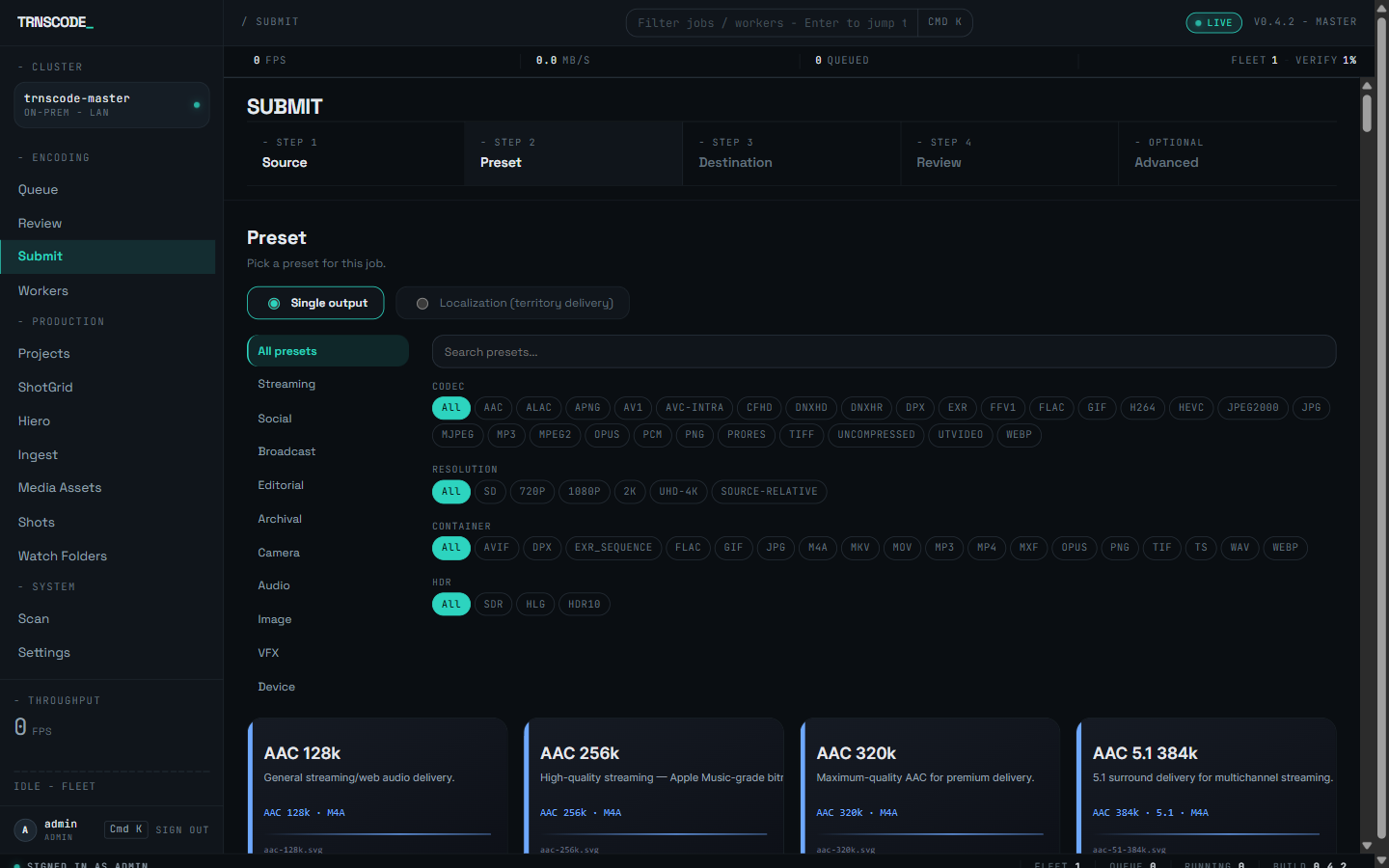
Work from the delivery requirement, not from the source. The family narrows the field — a proxy for an edit, an intermediate for a grade, a social preset for a platform — and each card states its purpose and its output. For a delivery to a client or a platform, confirm the card's stated target against the delivery specification before submitting. The selection is recorded on the job and remains visible afterwards.
The same step also selects the delivery mode: a single output, or localization delivery with per-territory outputs — see Localization.
Source rules#
Presets declare what they expect of their input. A preset built for 4K delivery records that it requires at least a certain height; one that muxes audio records that audio must be present.
When the master probes a source and the result does not satisfy those expectations, the review screen shows each mismatch. Submission is still permitted, because legitimate reasons to override exist. Review each warning before submitting: it marks the difference between a file that is technically valid and one that meets the delivery requirement.
Submitting a 1080p source to a 4K preset produces a genuine 4K file without 4K detail. The job passes verification, because the output is exactly what the preset requested. The source-rule warning is the only indication that the delivery is upscaled.
Camera presets#
The camera family targets specific camera originals rather than a generic input — bodies such as the Blackmagic Pocket 6K and URSA Mini 12K, the Canon C300 Mark III, the Sony VENICE and the Z CAM E2-F8.
Camera originals are not interchangeable. Sensor readout, native colour space and the manufacturer's log curve differ per body, and a preset that knows which camera it is receiving handles the transform correctly instead of inferring it from metadata that may be absent or wrong.
If your camera is not in the family, use a general ProRes or DNxHR intermediate preset and confirm the colour handling on a test clip before committing a shoot to it.
Proxy presets#
The library carries editing proxies named for the editor that will open them — Avid DNxHD 36 and DNxHR LB in MXF, Final Cut ProRes Proxy, Premiere in both H.264 and ProRes, and Resolve. Search the gallery for the NLE's name to list them.
The distinction is functional. A proxy an NLE cannot relink to the original is a second copy of the footage, not a proxy. These presets carry the naming and metadata each application expects so that reconnecting to the originals works.
resolve-proxy-h264-reattach is built for the reattach workflow specifically. When proxying for Resolve with the intention of relinking later, use it in preference to the generic H.264 proxy.
VFX and EXR#
The VFX family writes OpenEXR sequences in six compression schemes — DWAA, DWAB, PIZ, RLE, ZIP and ZIPS — bakes an EXR sequence to Rec.709 JPG stills for dailies review, and produces reference encodes for review rather than for work. Select them from the gallery's VFX category like any other family.
Choosing between the EXR compressions is a storage-against-fidelity decision. The lossy schemes are much smaller and appropriate for comps in progress; the lossless schemes are appropriate for archive. When no other requirement applies, ZIP is the conventional choice.
The EXR paths require image and colour tooling that ships in the master bundle. Confirm that the tooling resolves before relying on it — see probe-v-deps.
GPU-accelerated presets#
The GPU-accelerated family carries logical-GPU presets: the preset names a delivery target, not an encoder vendor. When the job is assigned to a worker with a hardware encoder, the preset uses that worker's encoder — NVENC on NVIDIA, Quick Sync (QSV) on Intel, AMF on AMD. When no GPU worker is free, the job falls back to software encoding rather than waiting for one.
The job's chunk view records which encoder actually ran each chunk. A chunk that fell back is labelled "software fallback", so a delivery can be audited for how it was encoded after the fact.
Custom presets#
The web console includes a preset editor for cases the library does not cover. Two constraints apply.
- A custom preset is not validated by the product. The shipped presets are anchored to published specifications and tested; a custom preset carries neither property until you supply both.
- Presets must not carry their own progress reporting flags. The worker service adds progress instrumentation when it runs the encode, and a preset that also specifies it will conflict.
Create a custom preset by copying the closest shipped preset rather than starting from an empty one. The copy carries the container, colour and source-rule scaffolding that would otherwise have to be reconstructed.
A preset's filter tags are part of its definition. An administrator editing a preset sets the tags that place it in the gallery's category rail and facet chips; set them on a custom preset so operators can find it the same way they find the shipped library.