Notifications
The master delivers Web Push notifications to a phone or desktop when a job finishes, fails or needs approval — with no TRNSCODE tab open. This page covers prerequisites, enabling per platform, and the per-event preferences.
Push notifications are delivered by the browser and operating system, so they arrive whether or not the web console is open. They are distinct from the in-app toast, which appears only inside an open tab; the relationship between the two is described in In-app fallback.
Events and recipients#
Four events produce a push notification. No other event does. Each event has a recipient rule — who is permitted to receive it — and a matching preference toggle each recipient can turn off individually.
| Event | Delivered to | Preference toggle | Opens |
|---|---|---|---|
| Job completed | The job's submitter only | Job completed | The job's detail page |
| Job failed | The job's submitter only | Job failed | The job's detail page |
| Job pending approval | Every reviewer and admin | Pending approval | The Review page |
| Worker offline | Admins only | Worker offline | The Workers page |
Both conditions must hold before anything is sent: the recipient rule admits the user, and that user's own toggle for the event is on. Repeated notifications for the same job or worker replace the earlier entry in the notification tray rather than stacking — a late failure superseding an earlier completion for the same job replaces it.
Job-completed and job-failed notifications are scoped to the job's own submitter, not to every operator on the install. If a teammate receives a notification about another user's job, report it as a defect.
Delivery is best-effort by design. A push failure is logged on the master and never affects the job, approval or worker flow that raised the event.
Prerequisites#
Web Push works only in a secure context: HTTPS, or localhost. Over plain HTTP the browser refuses to register a push subscription — the Enable button does nothing, or the permission prompt is silently skipped. Terminate TLS in front of the master with a reverse proxy (nginx, Caddy, Traefik) or an HTTPS-presenting tunnel.
Desktop Chrome at http://localhost:7443 is a secure context. On the master machine itself, push works without a proxy.
iOS and iPadOS deliver Web Push only to an app installed to the home screen, on iOS/iPadOS 16.4 or later. Installation is covered in Mobile & install; the notification steps follow in Enable on iPhone or iPad.
Enable on iPhone or iPad#
The console deliberately shows no permission prompt in a plain Safari tab, because the operating system would never deliver to it. Install first, then enable.
Follow the procedure in Install on iPhone or iPad. Installation requires the HTTPS origin described in Prerequisites.
The installed app is a separate context from the Safari tab. Notifications can be enabled only from the installed app.
Go to Settings → General → Notifications and press Enable, then confirm the iOS permission prompt.
The device appears as a row under Your devices in the Notifications card, and the card shows Enabled on this device.
Until the app is installed, the Notifications card shows the instruction to add the console to the home screen instead of an Enable button. iPadOS identifies itself to websites as macOS; the console detects the difference and shows the same install guidance on an iPad.
Enable on Android or desktop#
Android Chrome and Edge, and desktop Chrome, Edge and Firefox, deliver push either installed as an app or in a regular browser tab. No installation step is required.
Use the master's HTTPS address, or http://localhost:7443 in desktop Chrome on the master machine.
Go to Settings → General → Notifications and press Enable.
Choose Allow on the browser's permission prompt.
The card shows Enabled on this device. with a Disable button, and the browser appears as a row under Your devices.
Each browser enabled this way registers as its own device. A phone and a desktop operate independently, each as a separate row under Your devices; enabling one has no effect on the other.
Recover a denied permission#
Browsers do not allow a site to re-request a notification permission that was denied. Pressing Enable again produces no prompt until the permission is reset in the browser itself.
In Chrome: press the padlock in the address bar, open Site settings, and set Notifications to Allow. Other browsers keep the equivalent control in their per-site settings.
Return to Settings → General → Notifications and press Enable.
The most common cause of Enable doing nothing is not a denied permission but a master served over plain HTTP. Check the padlock in the address bar before resetting permissions; see Prerequisites.
Per-event preferences#
The Notifications card sits at Settings → General, a personal preference alongside theme and mode. It carries one toggle per event: Job completed, Job failed, Pending approval and Worker offline. All four default to on, so an account receives every notification class it is entitled to until it opts out.
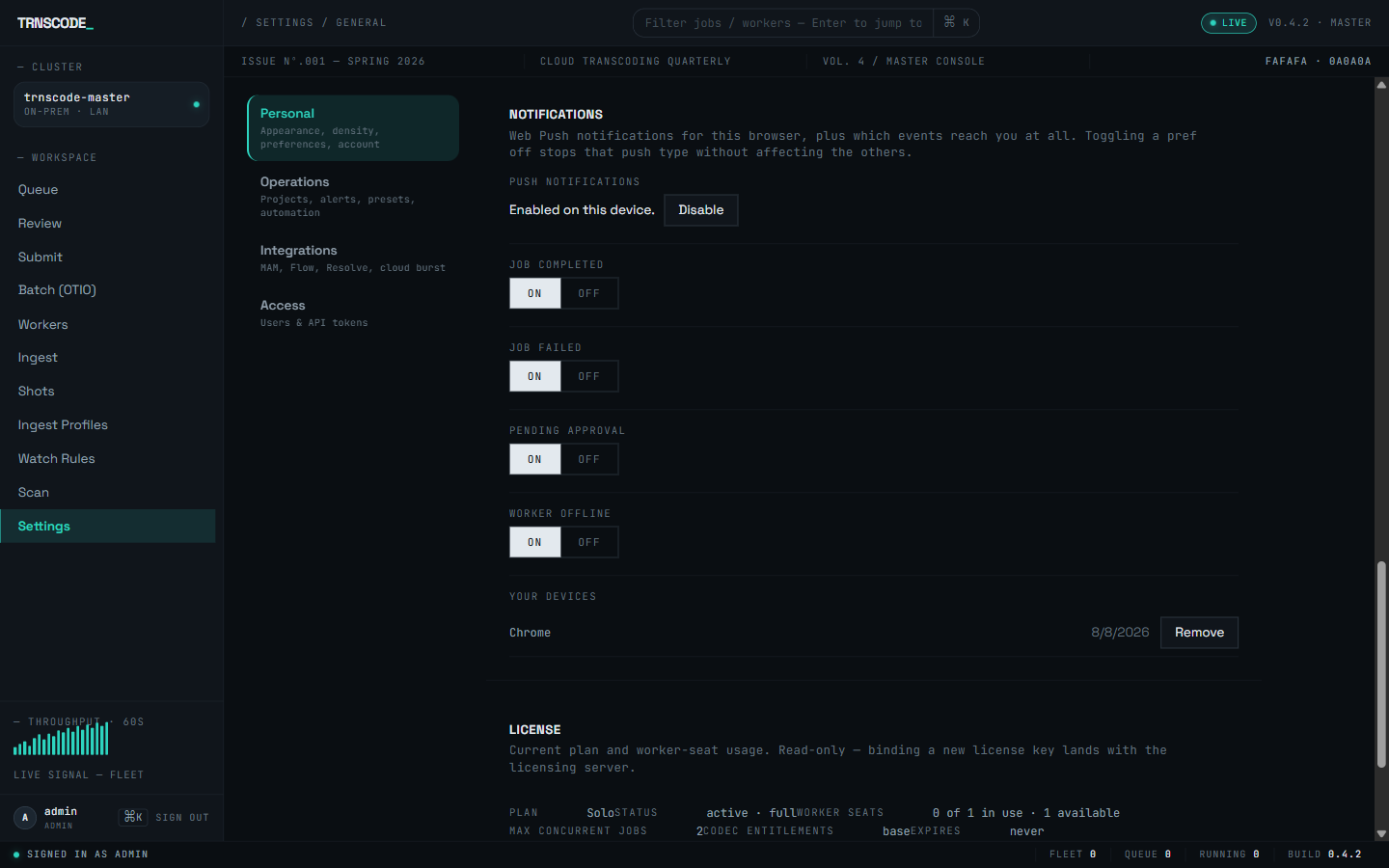
Preferences are per-account, not per-device. Turning a toggle off stops that event on every registered device; the other event classes are unaffected.
The card shows only the toggles the account's role can use, and the master enforces the same rules when it sends. Job completed and Job failed appear for everyone. Pending approval appears only for reviewers and admins. Worker offline appears only for admins. An operator without a reviewer or admin role never sees those two rows.
Preferences can also be read and written over the REST API; see Notification preferences in the API reference.
Registered devices#
Your devices lists one row per browser or device where push was enabled, labelled with the browser and the registration date. A row without a label shows Unnamed device; before anything is registered the list reads No devices registered yet.
Press Remove on a row to revoke that device's subscription, or press Disable from the device itself. Removing a device does not change the per-event preferences, which belong to the account.
The master also prunes rows on its own. When a send attempt reports that the subscription is gone — the browser profile was uninstalled, site data was cleared, or the OS permission was revoked — the dead row is deleted after the send, so a device can quietly disappear from the list without operator action.
A device still listed but no longer receiving notifications holds a stale subscription. Remove the row, then press Enable again from that device to register a fresh one.
The list is backed by the /push/subscriptions resource; see Push notifications in the API reference.
First-submit prompt#
The first time an account successfully submits a job from a device that has push neither enabled nor declined, a small card appears asking whether to enable notifications. It is tied to that first submission only: dismissing it with Not now is permanent, and the card does not reappear on later submissions. Notifications remain available at any time from Settings → General → Notifications.
The dismissal is recorded in browser storage. With storage disabled — for example in private browsing — the prompt does not appear at all.
In-app fallback#
While a TRNSCODE tab is open on a device with no push subscription, the same four events raise a toast inside the tab instead. The same recipient rules apply — own jobs only, Pending approval gated to reviewers and admins, Worker offline gated to admins — and each toast carries a View action that opens the same destination as the corresponding push notification.
The two paths never double up. Once push is enabled on a device, the in-app toast stops firing on that device; the push notification is the only copy.
The fallback toast is carried over the console's live event feed and requires that connection to be up. Events raised during a network interruption are not queued and do not appear after reconnect. Push is delivered by the browser and operating system independently of the console's connection; where delivery matters, enable push.
Unsupported browsers#
Push requires a browser that exposes service workers, the Push API and the Notification API. Where any of the three is missing — Safari on macOS, and some older or locked-down browsers — the Notifications card shows Push notifications are not supported in this browser. and there is nothing to enable.
On such a browser the in-app toast still fires while a tab is open. For delivery with no tab open, enable push from a supported browser on the same account. On an iPhone or iPad the condition is different: push is unsupported only until the app is installed, and the card shows the install guidance instead — see Enable on iPhone or iPad.