Mobile & install
The web console installs to a phone or tablet home screen as a Progressive Web App and reflows for small screens. This page covers the secure-context requirement, the install procedure for each platform, what changes on a mobile viewport, and approving a worker by QR from the phone.
Installation is optional. The console works in a phone browser without it, but the installed app launches full-screen from its own icon and keeps its shell available when the network drops. On iPhone and iPad, installation is also the prerequisite for push notifications.
What installing provides#
The web console is an installable Progressive Web App. Added to a home screen, it launches in its own window with its own icon and no browser chrome, opening directly at the job queue. Its service worker keeps the application shell available offline, so the console still loads and shows the last data it received when the connection is lost.
The installed app is the same console served by the same master service. Installation changes how the console launches, not what it can do.
HTTPS requirement#
Browsers permit app install and service workers only on a secure context: an HTTPS origin, or localhost. The master service serves plain HTTP on the LAN, so a phone opening http://<master-ip>:7443 can use the console but cannot install it.
No install option appears in any browser over plain HTTP on the LAN. The console loads and works; the install entry points are absent. Provide an HTTPS origin first — see Provide an HTTPS origin.
Provide an HTTPS origin#
Terminate TLS at a reverse proxy — nginx, Caddy, or Traefik — pointed at the master's HTTP port. Set TRNSCODE_PUBLIC_BASE_URL to the HTTPS origin the proxy serves, so that links the master generates match the address the phone uses.
# the origin the proxy serves, not the master's LAN address
TRNSCODE_PUBLIC_BASE_URL=https://trnscode.example.com
A tunnel that presents an HTTPS origin — an SSH tunnel or a Cloudflare tunnel terminating at the master's HTTP port — satisfies the same requirement without a proxy on the master's network.
Install on iPhone or iPad#
iPhone and iPad require Safari on iOS or iPadOS 16.4 or later.
Use the HTTPS origin configured above. A plain-HTTP LAN address does not offer the install option.
Add to Home Screenis in the share sheet's list of actions.
TRNSCODE appears on the home screen with its own icon. Opening it launches the console full-screen, without Safari's chrome, at the job queue.
On iPhone and iPad, push notifications are delivered only to the installed app. Complete this procedure before configuring alerts — see Notifications.
Install on Android#
On Android, install from Chrome or Edge.
After a few visits the browser offers an Install prompt.
Without waiting for the prompt, use the browser menu: Install app or Add to Home screen.
Verify on desktop#
Desktop Chrome treats http://localhost:7443 as a secure context, so a browser on the master machine can install the app directly, with no proxy involved. Use this path to confirm the app installs and launches before configuring HTTPS for phones. Desktop coverage is limited to this localhost verification path.
In-app install card#
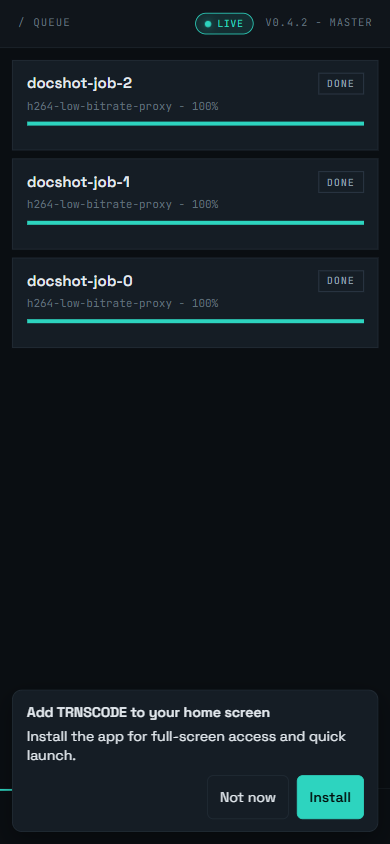
The console also prompts from inside the app. A card titled "Add TRNSCODE to your home screen" appears when all of the following hold.
- The viewport is mobile-sized.
- The console has been visited at least three times while signed in. Visits that end at the login screen are not counted.
- The app is not already installed or running standalone.
- The card has not been dismissed before.
On Android and other Chromium browsers the card carries an Installbutton wired to the browser's install prompt. iOS exposes no such prompt to the page, so the card shows Add-to-Home-Screen instructions instead.
Not nowdismisses the card permanently. The visit count and the dismissal are stored in the browser's localStorage under trnscode.pwa.visits and trnscode.pwa.dismissed.
Installed app identity#
| Property | Value |
|---|---|
| Name | TRNSCODE |
| Description | Distributed video encoding — submit, monitor, and manage jobs. |
| Start URL | /queue |
| Display | standalone — own window, no browser chrome |
| Orientation | any |
| Scope | / |
| Theme and background colour | #0c0d0f — the default (teal) dark canvas |
| Icons | 192×192 and 512×512 PNG, plus a 512×512 maskable icon |
The app declares two shortcuts, shown on Android by long-pressing the icon: Submit a job opens /submit, and Job queue opens /queue.
Offline behaviour#
When the service worker finishes preparing offline support, a toast confirms "TRNSCODE is ready to work offline." From that point the app shell loads without a network.
When the connection drops, the console keeps rendering the last data it cached and shows a fixed banner across the top: "Showing cached data — reconnecting…". Submitting jobs and other writes require a connection.
| Content | Caching policy |
|---|---|
Static assets — js, css, html, svg, png, ico, woff/woff2 | Precached, up to 5 MB per file. /index.html is the navigation fallback. |
| Same-origin API GET reads | Network-first with a 5-second timeout, falling back to the trnscode-api cache — 200 entries, 24-hour maximum age. |
/auth/ endpoints | Network-only. Never cached. |
/assets/, /preview/ HLS segments, /chunks/ source media | Excluded from the API cache. |
Data shown while the banner is visible is the last successful read, up to 24 hours old, not live state. Confirm queue and worker status after the connection returns before acting on it.
Update behaviour#
When a new version of the console is deployed, the app does not swap versions under a live session. A persistent toast states "A new version of TRNSCODE is available." with a Reload action. Tapping Reload activates the new version and reloads; until then, the session continues on the version it loaded with.
The console on a phone#
One breakpoint separates the layouts: below 768px the console uses the mobile layout; at 768px and above, the desktop layout applies. Between 768px and 900px the desktop sidebar narrows to about 150px and drops its cluster card, throughput strip, and footer username — brand, navigation, and sign-out remain — and the top search field is hidden.
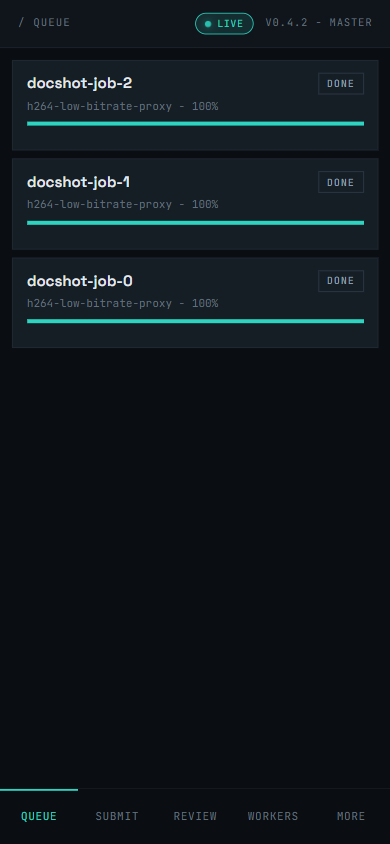
Below 768px the sidebar and status bar are removed and a fixed 56px bottom tab bar takes over primary navigation, with safe-area inset padding on notched phones. The bar shows the primary destinations — Queue, Submit, Review and Workers, filtered to what the signed-in role can see — plus a More tab. The active tab is accent-coloured with an indicator line along its top edge.
The More tab opens a modal sheet listing the remaining role-visible destinations and a Sign out button. The sheet traps focus; Escape or a tap on the backdrop closes it.
Screens reflow rather than compress, and remain usable down to a 375px viewport. The queue table is replaced by one card per job, keeping the Cancel and Retry actions and live progress updates; job detail collapses to a single column, and the chunk matrix is omitted — it renders on desktop viewports only. The in-app install card, when its conditions are met, appears above the tab bar.
QR worker approval#
An administrator signed in on the phone can approve a pending worker by scanning a QR code, without returning to a desktop. The pending worker's card on the desktop Workers page shows the QR; the phone reads it on the Scan page at /scan, reached from the More sheet on a mobile viewport.
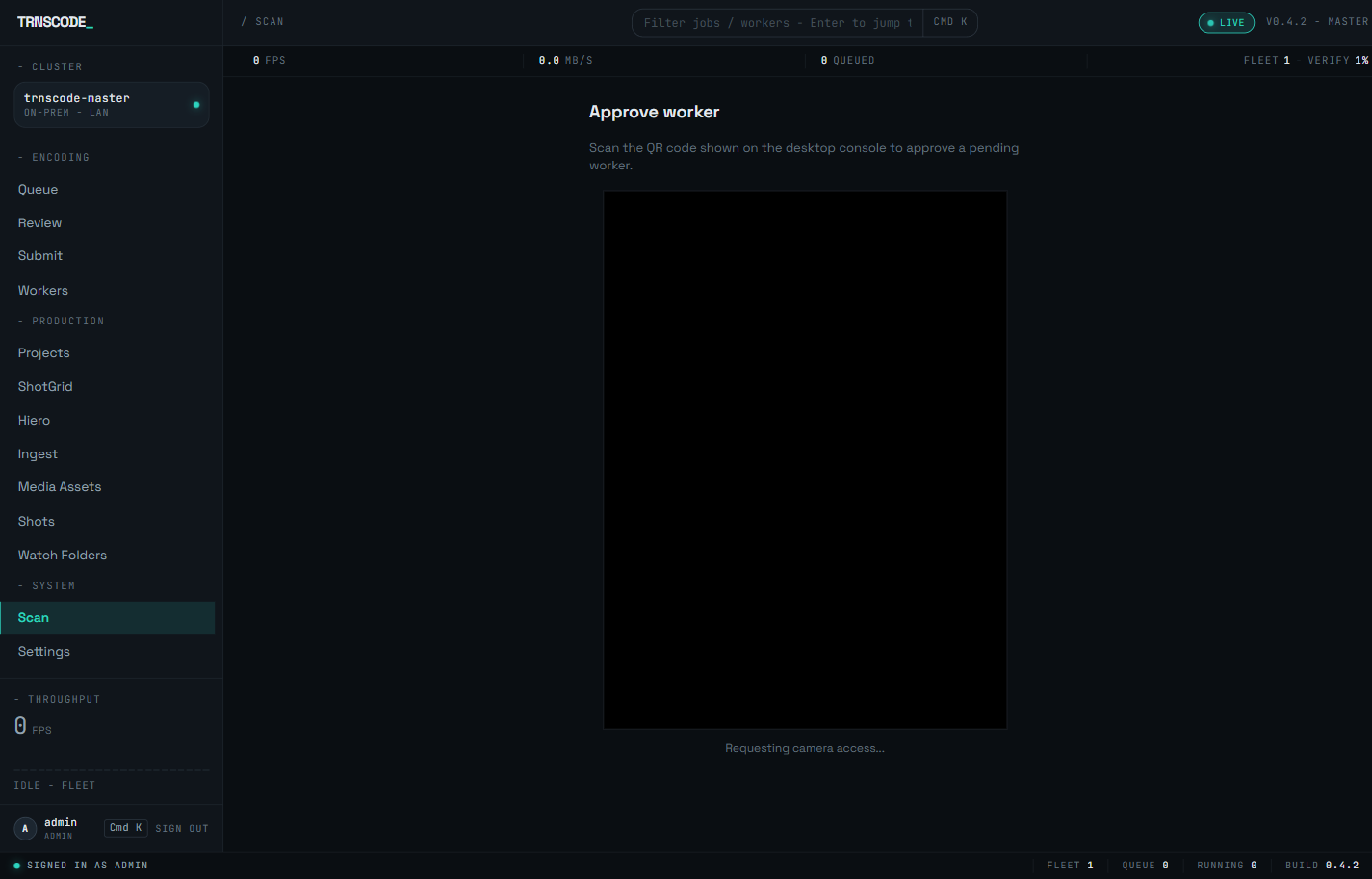
Locate the pending worker's card. The card shows the QR code for that registration.
Sign in to the phone app as an administrator and open Scan from the More sheet. Grant camera access when the browser asks.
The worker is approved as soon as the code is read.
The QR code alone cannot approve a worker. It identifies the pending registration; the authorization is the scanning account's signed-in administrator session. A phone that is not signed in, or is signed in without the administrator role, gains nothing by scanning.
For the desktop approval procedure and the review that precedes it, see Approve a worker.
Browsers that cannot install#
Any browser visiting the console over plain HTTP on the LAN cannot install it; the secure-context requirement applies on every platform. On iPhone and iPad the install path is Safari on iOS or iPadOS 16.4 or later, using Share → Add to Home Screen. No install procedure is provided for other iOS browsers.