Licensing
TRNSCODE requires a trnscode.com account and an activated license. Activation happens once, online; the master then holds a hardware-bound token and keeps working offline for a long grace window.
This page covers the license as the master service enforces it: what activation does, the three states the web console can be in, and the controls on the Licensing panel. Creating the trnscode.com account itself, plans, and billing are covered in Account & billing.
The licensing model#
The model is hybrid: the master activates once against the licensing service and receives a cryptographically signed license token bound to the machine's hardware. From then on it revalidates periodically in the background, and it does not require constant connectivity — an activated master keeps working between revalidations.
Entitlements are tier-based. The account's tier grants a number of worker seats — the count of workers that may be online at once — plus a set of codec entitlements. One activated install is bound to one machine; the seat it occupies can be released and re-bound on a different machine at any time (see Deactivate and release the seat).
An air-gapped master runs until its token expires. Activation and revalidation are the only operations that require a network path to the licensing service; encoding itself never does.
License states#
The web console names its current license state in a persistent banner that links to the Licensing panel. The three states, by behaviour:
| State | Entered when | Behavior |
|---|---|---|
| Not yet activated | A fresh install that has never been activated. | The master boots and the web console is reachable, but submitting jobs and registering workers are blocked until the operator activates. |
| Licensed | A valid, activated license. | Everything works, up to the tier's seat count and codec entitlements. Bringing more workers online than the tier allows refuses the extra workers. |
| Read-only | The offline grace period lapses, or the licensing service rejects the license. | Existing and in-flight work continues, but new job submissions and new worker registrations are blocked. Activating or revalidating restores full operation. |
A running encode is never killed by a license transition. Dropping to read-only blocks new work only; whatever is already on the fleet runs to completion.
Activate the master#
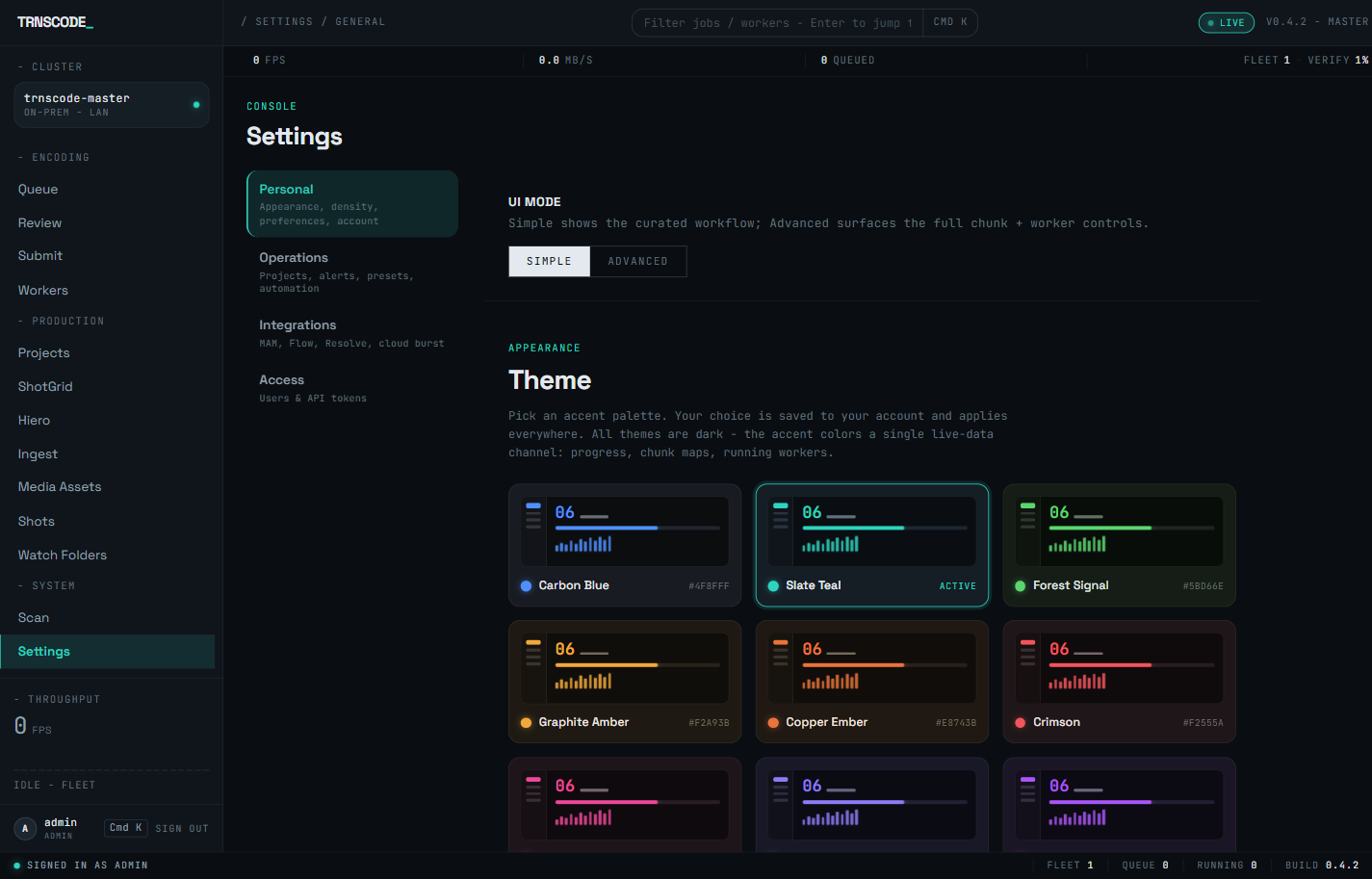
On a fresh install, the guided first run reaches activation on its own: the web console walks a forced administrator password change, then license registration, then sign-in (see Install the master). On a master that skipped or deferred that step, activation lives at Settings → General → Licensing.
Activation uses a trnscode.com account's email address and password. If no account exists yet, create one first — see Account & billing.
In the web console, go to Settings → General and scroll to Licensing.
The master exchanges the credentials for a signed, hardware-bound license token.
The license banner clears and the Licensing panel shows the active tier, seat usage, codec entitlements, and expiry. Job submission and worker registration are unblocked.
The Licensing panel#
After activation, the panel at Settings → General → Licensing reports the license the master currently holds:
- Tier — the plan the account is on.
- Seat usage— worker seats in use against the tier's cap.
- Codec entitlements — the codecs the tier licenses the fleet to encode.
- Expiry — when the current token lapses if the master never reaches the licensing service again.
The panel also carries the two license actions: Re-validate now and Deactivate, described below.
Re-validate now#
Re-validate now forces an immediate license refresh instead of waiting for the next periodic revalidation. Use it when the account changed and the master should pick the change up at once — for example, right after buying more seats, so the larger fleet ceiling applies without a wait.
Without it, nothing is lost: the periodic background revalidation picks up the same change on its own schedule.
Deactivate and release the seat#
Deactivatereleases this machine's bound install so its seat can be used on another machine — when retiring a master machine or moving the install to new hardware, deactivate on the old machine, then activate on the new one.
A machine that can no longer be deactivated from its own console — a failed disk, a decommissioned host — can have its install released from the account dashboard on trnscode.com instead. See Account & billing.
A deactivated master returns to the not-yet-activated state: it stops accepting new submissions and worker registrations until it is activated again. Deactivate only when the machine is done working or the seat is needed elsewhere.
Refused workers#
When the fleet is already at the tier's seat cap, an additional worker that attempts to register is refused rather than queued. The refused worker does not appear in the fleet; the reason is shown in the worker's own desktop GUI on that machine — most commonly that the seat limit is reached.
To bring the refused worker online, free a seat by draining and removing a worker that is no longer needed, or move the account to a tier with more seats and press Re-validate now.