Database backups
The master can take periodic, verified backups of its database. Each backup is a self-describing zip archive you can list and download from the console; restoring one is a command-line step.
Everything the master knows — the job history, chunk records, worker registrations, presets, audit trail and every setting saved in the console — lives in one SQLite database. Backing that file up is the difference between a disk failure costing an afternoon and costing the entire history of the installation. The master does it on a schedule, online, without pausing the fleet.
Backups are off by default. Nothing is captured until the schedule is turned on under Settings → Operations → Backups. The one exception is the automatic snapshot taken before a database migration, which is separate from the scheduled backups described here.
What is backed up#
A backup contains the database, and only the database. It is the single member that must be captured as one consistent point in time, and it is small — even a large installation's database is measured in megabytes, so a backup is quick and can run while jobs encode.
- Included: the SQLite database — jobs, chunks, workers, presets, audit history, and the settings saved in the console.
- Not included: source files and finished deliverables. Those live in the storage directories, are far larger, and are backed up by whatever protects the rest of that storage. Including them would mean pausing the dispatcher to capture a consistent set, turning a safety feature into a scheduled outage.
The scheduled backup is SQLite only. An installation pointed at an external Postgres database reports scheduled backups as unsupported rather than pretending to protect a database it does not own — use the tooling for that database instead.
Turning on the schedule#
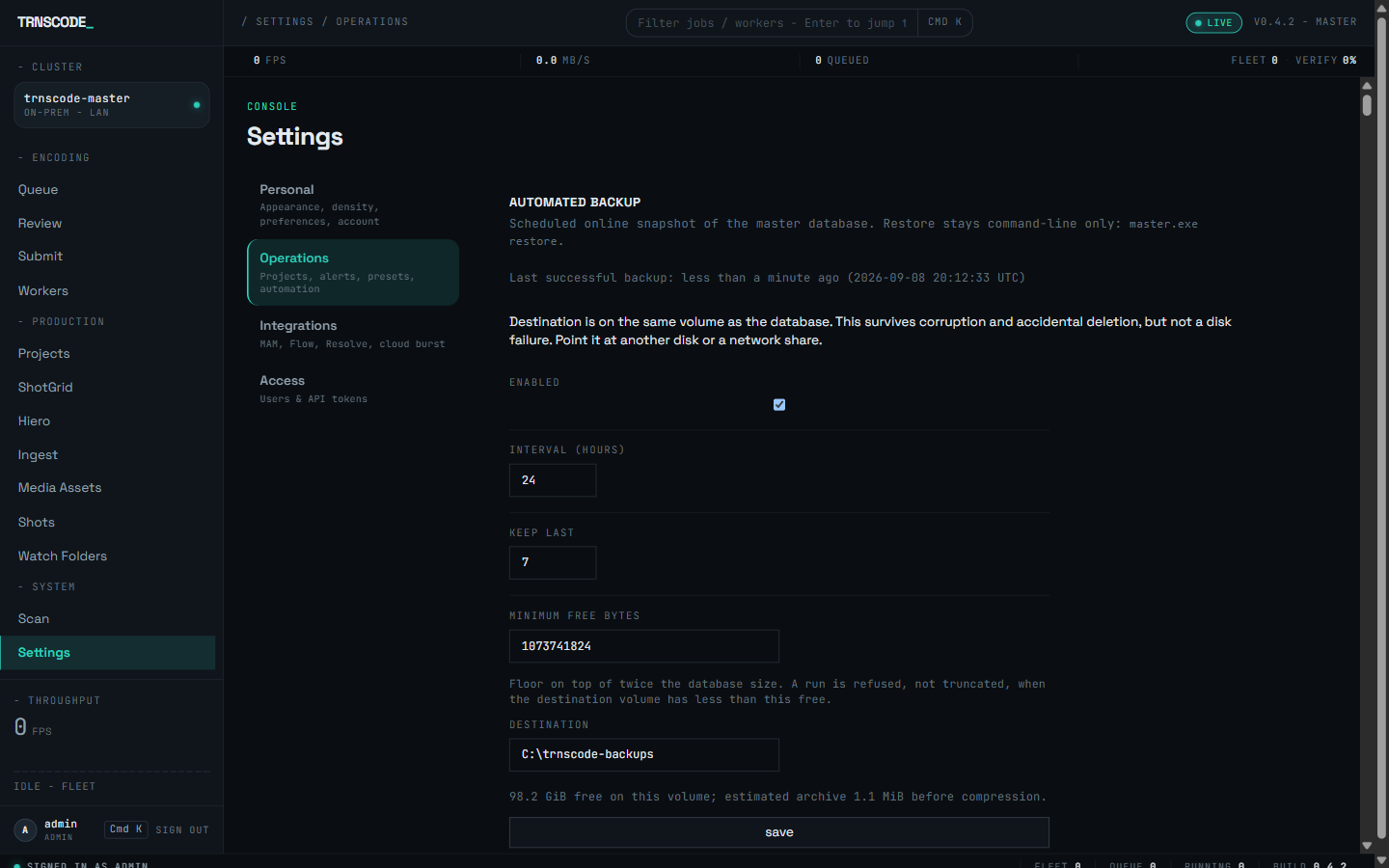
Open Settings → Operations and find the Backups panel. It sets four things: whether backups run, how often, how many to keep, and where they are written. Saving the panel takes effect immediately — it writes a setting the running service reads on its next check, with no restart.
| Setting | What it does |
|---|---|
| Enabled | Turns the schedule on. Off until you set it. |
| Interval | How often a backup is due, in hours. |
| Keep last | How many archives to retain. When a new backup lands, the oldest beyond this count are pruned. |
| Destination | The directory archives are written to. The default sits beside the database. |
A backup on the same disk as the database survives a corrupted file, but not a failed disk. The default destination is on the database volume, which is why backups ship off. For real protection, set the destination to a different volume — an external drive or a mounted network share.
Before each backup the service checks free space and refuses if the volume is too full, so a backup can never be the thing that fills a disk. The floor, the interval, retention and destination all have environment-variable defaults that seed this panel — see Scheduled backups in the configuration reference. The values saved in the panel win over those defaults at runtime.
The archive format#
Each backup is a single .zip file with a name that records the host, the moment it was taken, and the database revision:
trnscode-<host>-<UTC-timestamp>-<revision>.zipThe archive holds two members:
| Member | Contents |
|---|---|
trnscode.db | The database snapshot, taken with SQLite's own online copy. |
manifest.json | Plain text describing the archive: the application version, the database revision, the SHA-256 of the database member, and a fingerprint of each vault key in force at the time. The key values themselves are never written — only a fingerprint, so a restore can warn if the keys have since changed. |
The database is checked with an integrity and foreign-key scan before it is packaged, and the result is recorded in the manifest. A backup that failed its own integrity check is a warning you want at backup time, not at restore time.
Managing archives#
The Backup archives panel, on the same Settings → Operations page, lists every archive in the destination, newest first, with its size and the moment it was taken. From it an administrator can:
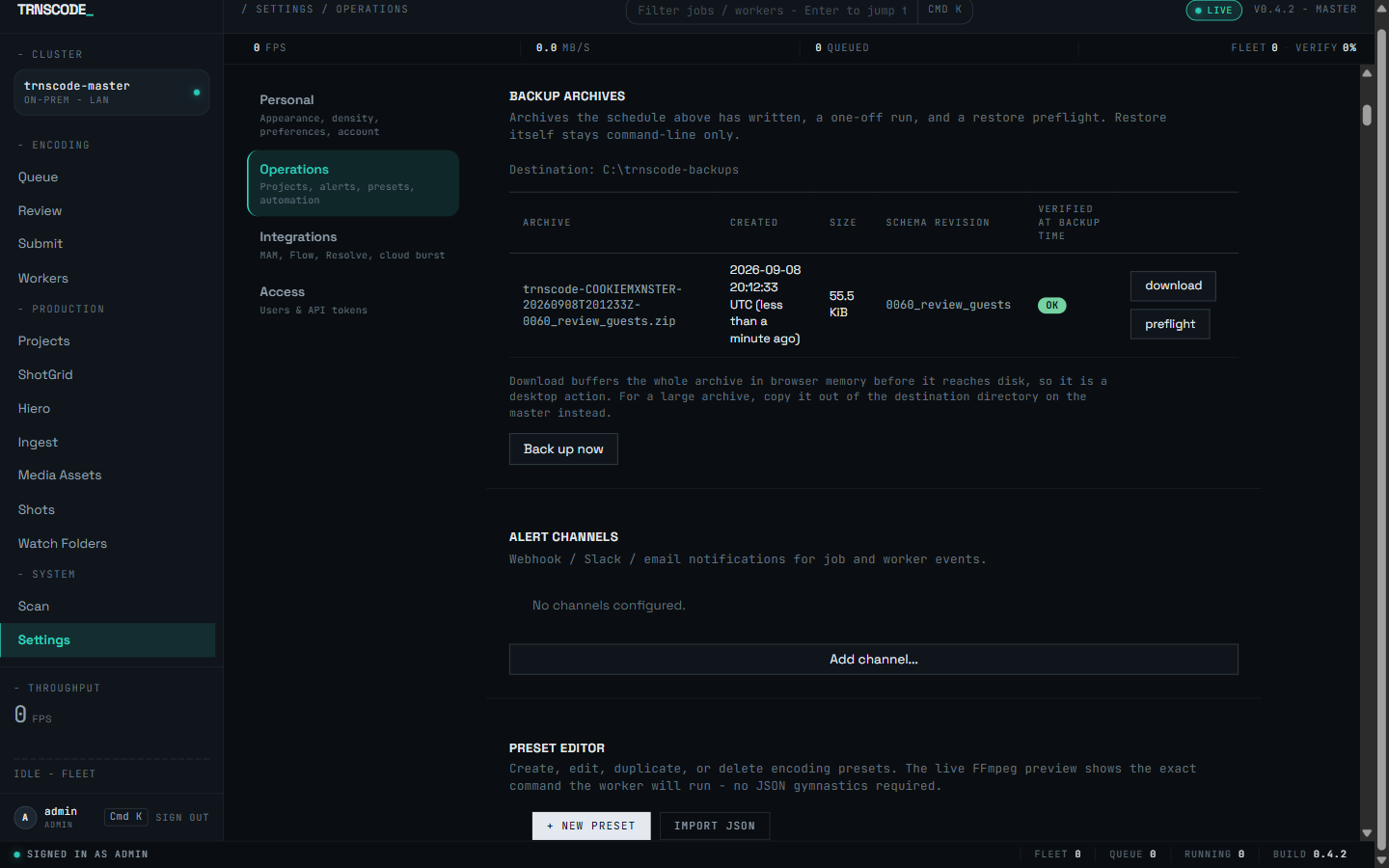
- Download an archive, to copy it off the machine.
- Back up now, to take one immediately rather than waiting for the schedule — the button reports progress until it completes.
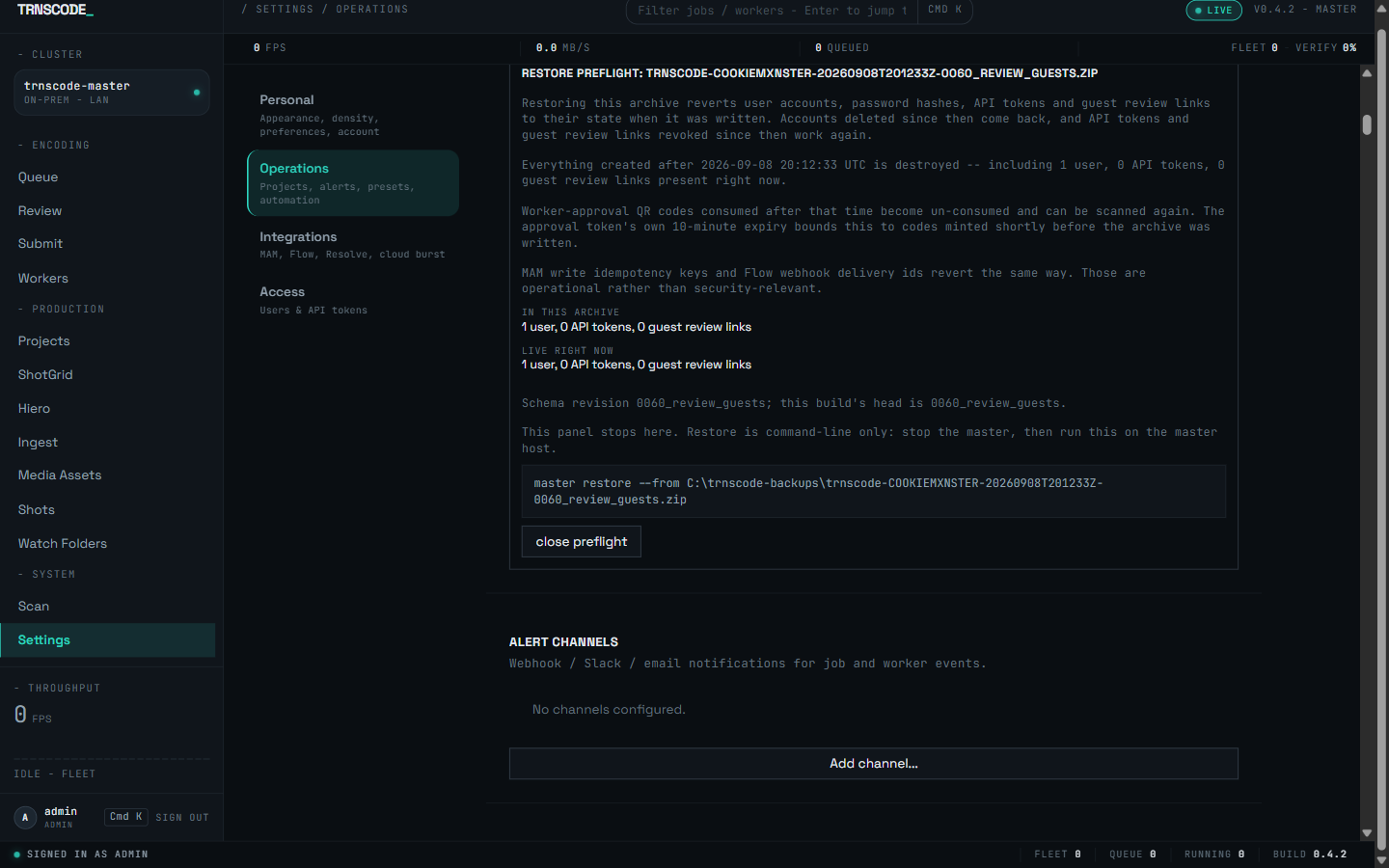
- Check an archive with a dry-run preflight. This extracts a copy, verifies it against its manifest, and prints the exact command to restore it — without touching the live database.
There is no Restore button in the console, by design. Restoring replaces the live database, so it is a deliberate command-line step taken while the master is stopped — the panel takes you as far as the verified command to run, and no further.
Restoring#
Restore from the command line, with the master stopped:
$ master restore --from trnscode-host-20260908-0060.zip --yesThe restore is careful in three ways:
- It verifies before it replaces. The database member's checksum is compared against the manifest, and a corrupt or truncated archive is refused rather than staged.
- It refuses a backup from a newer master. The archive records the database revision it was taken at; a revision this build does not recognise is rejected, so a backup from a later version cannot be restored onto an older one and leave the database in a state the code cannot read. An older backup is upgraded to the current revision as part of the restore.
- It keeps the database it replaced. The previous file is renamed aside before the archive is put in place, so a restore is reversible if it turns out to be the wrong archive.
The full command reference — master backup, master restore and the rest — is on the CLI page.
Backup health#
A backup system whose failures are silent is worse than none, so the outcome of every backup is visible in three places:
- The activity feed records each completed backup, each failure with its reason, and a restore.
- The alert channels fire on a failed backup and on staleness — no successful backup for well past the configured interval, which catches the common case where the schedule was never actually running. Configure where these go under Settings → Operations → Alert channels.
- The dashboard shows a small warning when a backup is overdue, so the state is visible without opening Settings.
Staleness matters more than failure. The most common way to lose data is not a backup that failed — it is a backup that was never turned on, or a schedule that quietly stopped. The staleness alert exists for exactly that case.