Submit a file
The four-step submit flow in the web console — Source, Preset, Destination, Review — plus the optional Advanced step. The source is referenced in place by default; nothing is copied.
This article shows the procedure. For the concepts behind each step — where paths resolve, how the probe works, what the review warnings mean — see Run your first job.
Prerequisites#
- The master service is activated. A master that has never been activated blocks job submission until its license is registered. See Licensing.
- At least one worker shows online on the Workers page. See Approve a worker.
- The source file is at a path the master can read, or exists on the current computer for upload.
Step 1 — Reference the source#
Open Submit in the navigation rail. The Source step references a file the master can already see: click Browse master…to pick the file from the master's filesystem, or paste its path into Source path. Nothing is copied — a worker that can see the path reads it directly.
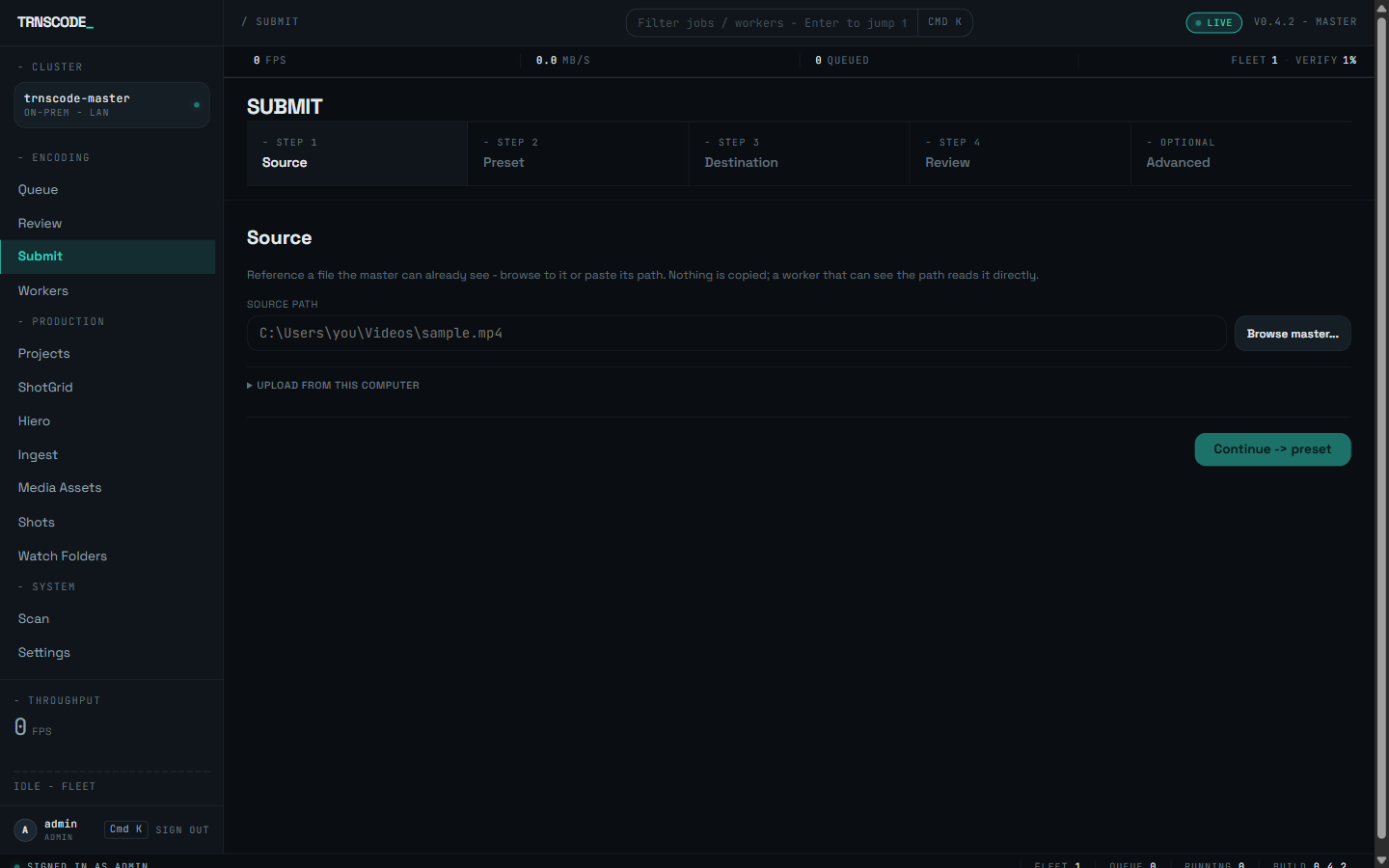
Upload from this computer is collapsed beneath the path field. Expand it only when the file exists on the current computer alone; the upload streams to the master and fills the path field when it completes.
Click Continue. The path is carried forward; the master probes it when the Review step opens and shows the result there.
Step 2 — Select a preset#
Leave the delivery mode at Single output. The preset gallery is searchable: the category rail on the left runs from All presets through Streaming, Social, Broadcast, Editorial, Archival, Camera, Audio, Image, VFX and Device; facet chips filter by codec, resolution, container and HDR; the search field matches free text. Facets combine — selecting H264 and 1080P narrows the gallery to presets matching both.
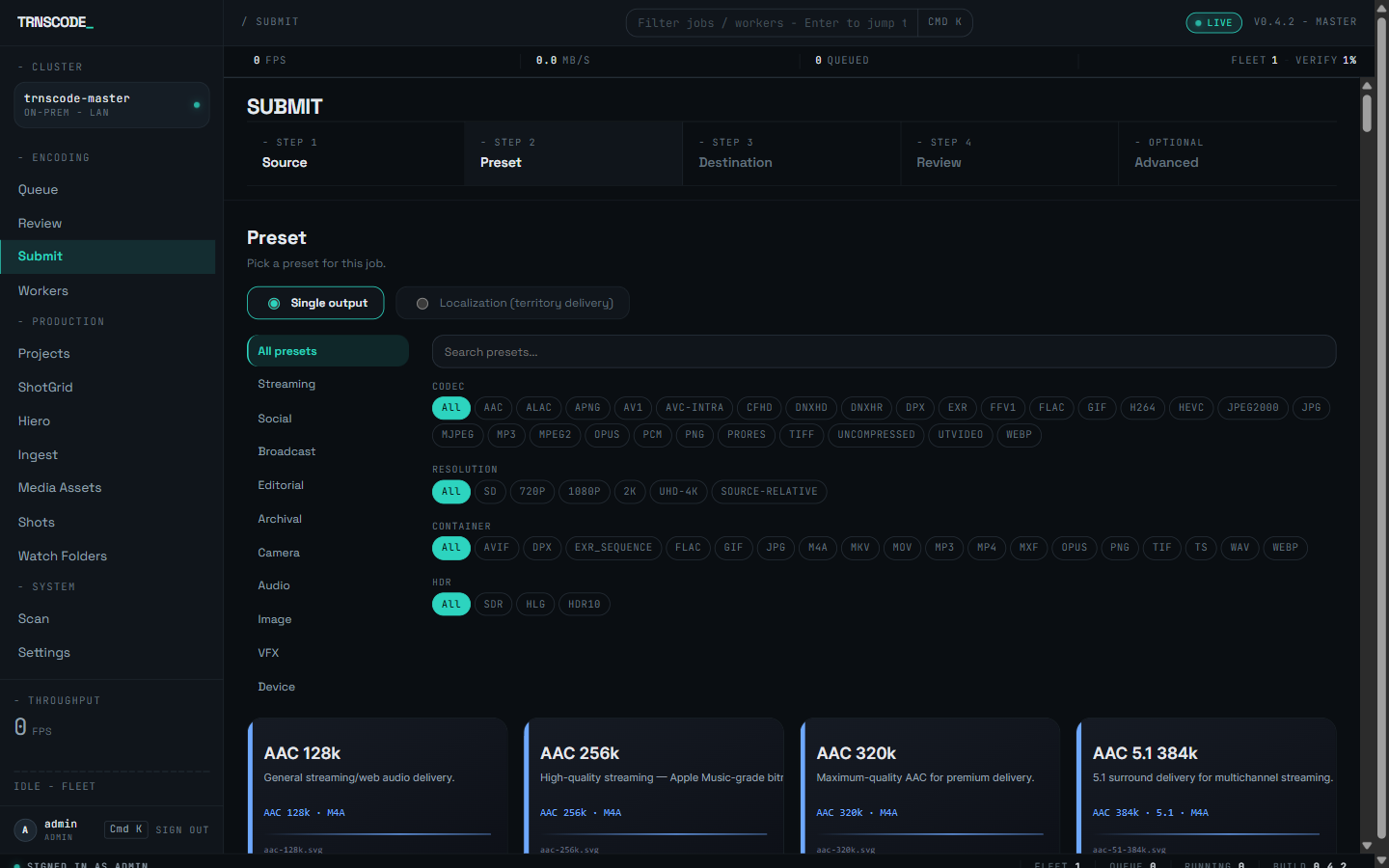
Choosing Localization (territory delivery) instead of Single output adds a territories step before Review; see Add localization tracks.
Click a preset card to select it, then click Continue.
Step 3 — Set the destination#
The output directory pre-fills with the configured output directory; keep it unless the deliverable belongs elsewhere. The filename and job name pre-fill from the source, and the file extension is fixed by the preset. The directory must be writable by the master, which performs the final assembly.
Step 4 — Preview and adjust#
The Review step opens a preview of the source. A source the browser can decode plays natively in the page; ProRes, DNxHR and similar production codecs play through a low-resolution HLS proxy the master generates on demand. The preview works for referenced and uploaded sources alike.
Below the preview, the clip timeline sets the edit: drag the in and out handles to trim, and the fade handles to set a fade-in and fade-out. The remaining adjustments are grouped into Audio, Framing, Look and NLE cards.
The step also shows what the probe detected — container, duration, resolution, audio layout — beside what the preset will produce. Read any source-rule warnings before submitting; they identify mismatches between this source and the preset's expectations.
Click Submit job. The console redirects to the queue with the new job at the top.
Advanced overrides (optional)#
The step header carries a fifth entry, Advanced, outside the numbered path. It groups the adjustment fields into collapsible sections, each field carrying a tooltip, and holds the per-job output overrides: container, codec, resolution, frame rate and bitrate, plus audio codec, bitrate, sample rate and channels, and the quality mode (CRF or bitrate).
An override applies to this job only; the preset itself is unchanged. The overrides chosen here appear on the job's Spec tab after submission. For the full field reference, see Per-job overrides.
Confirm completion#
The job runs through encode, assembly and verification, then reports DONEat 100%. A short source may complete in seconds. Click the queue row to open the job's detail page; the Chunks tab shows per-chunk progress while it runs.
The encoded file exists at the destination path, and the job's verification evidence is attached to its record. To inspect it, see Read job forensics.