Hiero
Drive Hiero and OTIO timelines as a first-class source: ingest a timeline's shots into a project, or explode a timeline into one encode job per clip.
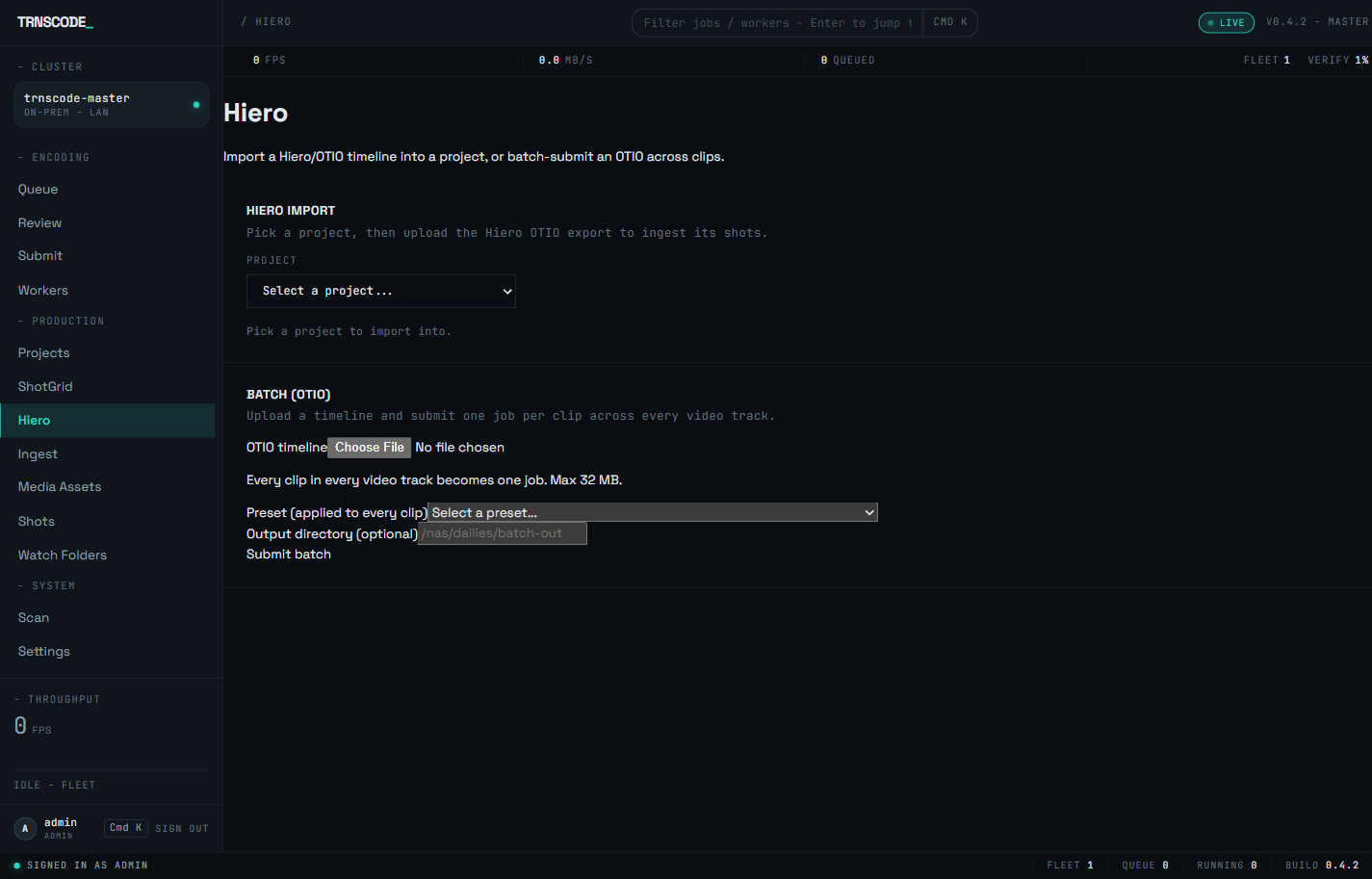
Hiero has its own console page — Hiero, in the Production group of the navigation, at /hiero — rather than being reached through generic settings or the submit flow. The page carries both timeline surfaces: a project-bound import and a batch submit.
Two submission paths#
| Path | Input | What it produces |
|---|---|---|
| Hiero import | A project plus the Hiero OTIO export | Shots and versions, compiled through the project's ingest profile |
| Batch (OTIO) | An OTIO timeline plus one preset | One ordinary encode job per clip |
The import path is studio ingest: each clip becomes a shot request and inherits the project's ingest policy. The batch path takes no project and creates no shots; it fans the timeline out into plain queue jobs, all encoded with the preset you select. Choose the import when the timeline belongs to a tracked project; choose the batch when the clips only need converting.
Import a timeline into a project#
A fresh install accepts ingest only through native_conform. Enable hiero_export from the entry-point admin on the Ingest page before the first import; a submission against a disabled entry point returns a refusal naming it.
Pick the project the timeline belongs to. The import compiles each shot through that project's default ingest profile.
Export the timeline from Hiero as OTIO and upload it. Every clip carrying an image-sequence or movie reference becomes its own shot request, all compiled together.
The queue shows one working master per shot with its dailies and reference jobs waiting behind it, exactly as any other ingest produces. Shots and versions are recorded and can be browsed on the Shots page.
Re-uploading the same timeline is recognised as a replay: the original ingest request is returned rather than a duplicate set of jobs created. See Studio ingest for the fan-out and versioning rules.
Submit a batch (OTIO)#
Select the OTIO file. Every clip in every video track becomes one job; the upload is capped at 32 MB.
One preset applies to every clip in the batch. Per-clip preset selection is not offered on this path; split the timeline if clips need different treatment.
Optional. When left empty, outputs land in the configured default output directory.
Select Submit batch. The result lists each spawned job with a link to its detail page.
Batch jobs are ordinary jobs: they chunk, schedule and verify like any submission from the Submit page, and they carry no shot or version record.